

Working in chat
Chat with agents: models and Auto, plan mode, files, approvals, queued messages, sub-agents and Stop.
You work with agents in chats. Each project can have as many chats as you need, and Ask Kajoo is always there to help you manage the workspace itself.
Where you chat
Project chats. Open a project and click Chat in the rail on the left. Start a new chat for each piece of work, or open an earlier one from the list.
Ask Kajoo. On workspace pages, click Ask Kajoo in the header. It's your workspace assistant: ask it in plain words to create or change agents, skills, prompt templates and connections. Switch between a sidebar and a floating window from its header, and open View History to go back to an earlier chat.
The message box
| Control | What it does |
|---|---|
| + (Add) | Attach files or photos, add MCP connections, pick a prompt template, switch the transcript view, show the migration References, and set the approval mode |
| Agent | Choose which agent answers. Search the list or filter it by label. |
| Model | Choose the model for this chat. See Models and Auto. |
| Effort | How much the model thinks before it answers: Low, Medium, High or Max |
| Plan | Turn on plan mode |
| Send / Stop | Send your message, or stop the agent while it works |

Keyboard. Press Enter to send and Shift+Enter for a new line. On a phone or tablet, Enter adds a new line and the send button sends. Type / at the start of the box to pick a prompt template, @ to mention another agent, and the up arrow to bring back an earlier message.
Select to Reply. Select text in an agent's answer and click Reply to ask about that part.
Ask Kajoo has the same message box, without the agent picker, @ mentions and MCP connections. It always uses the Kajoo Assistant.
Models and Auto
The model picker groups models by tier:
| Tier | Good for |
|---|---|
| Auto | Kajoo picks the most efficient model per task |
| Mini | Fast and efficient work |
| Pro | Strong all-round results |
| Max | The hardest reasoning |
| Ultra | Peak intelligence |
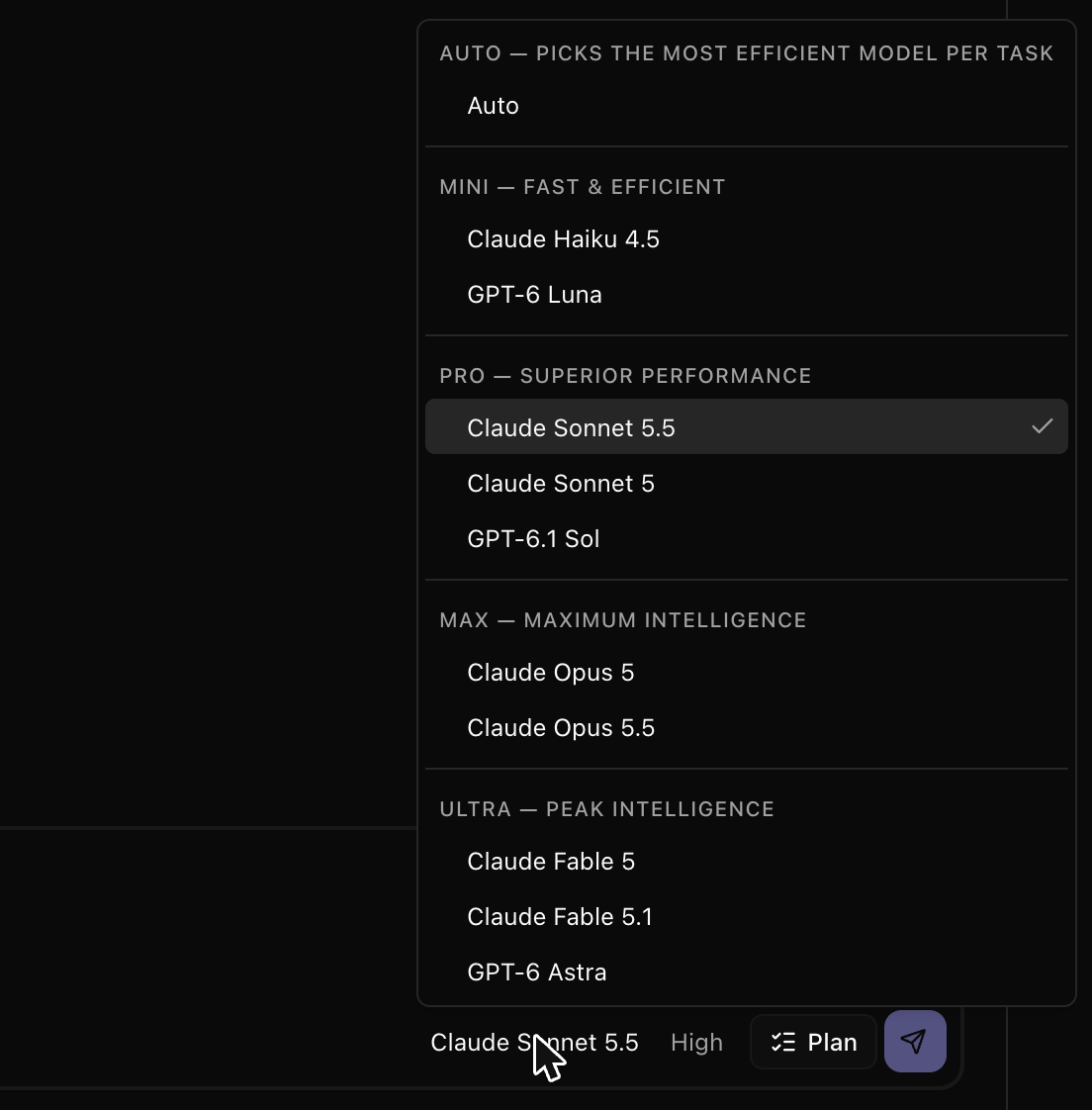
Choosing a model in the chat changes that chat only. To change an agent's own model, open the agent in AI Agents and set its LLM Model.
Auto picks a model at the start of each run, from the models your workspace has turned on. In a chat with images, it prefers models that can read images. Hover over the picker to see which model Auto chose.
Choose your workspace's models
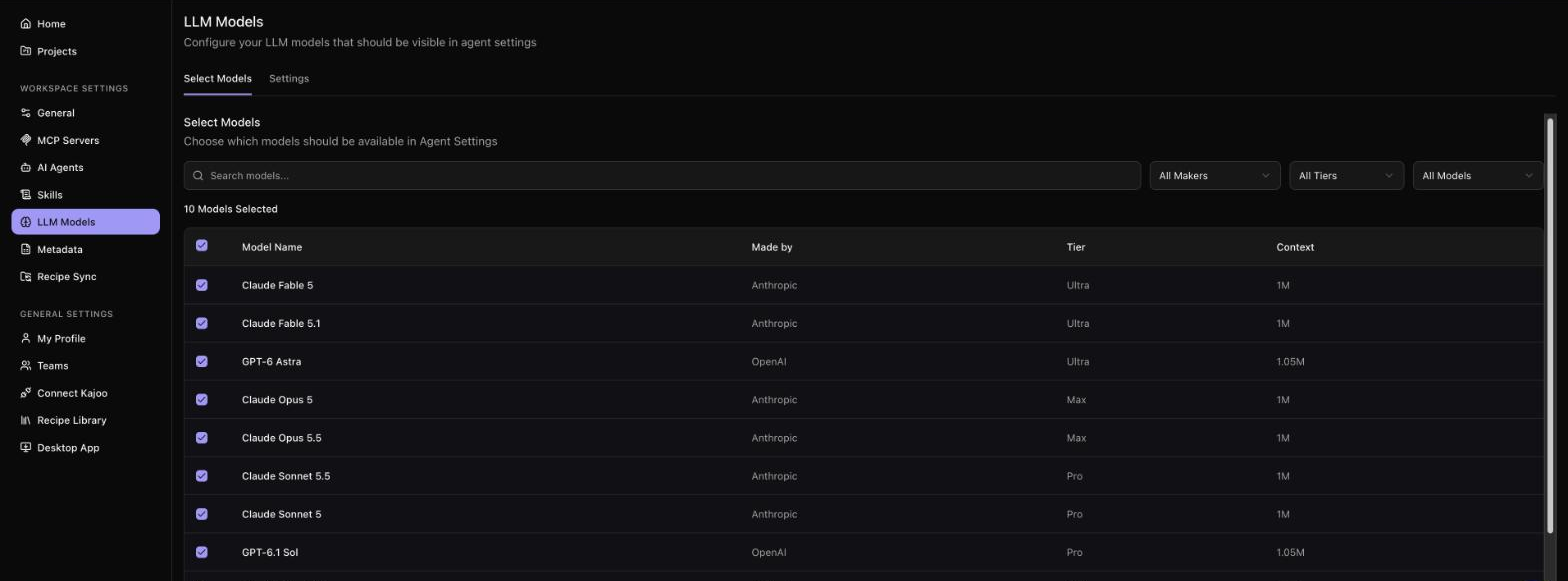
Go to Workspace Settings → LLM Models. You need edit access to the workspace.
- Select Models lists the models your agents can use, with who made each one, its tier and how much text it can read at once. Turn models on or off. If you turn one off, agents and chats using it switch to the workspace's default model.
- Settings has the Auto Routing switch and the Default Model for new agents.
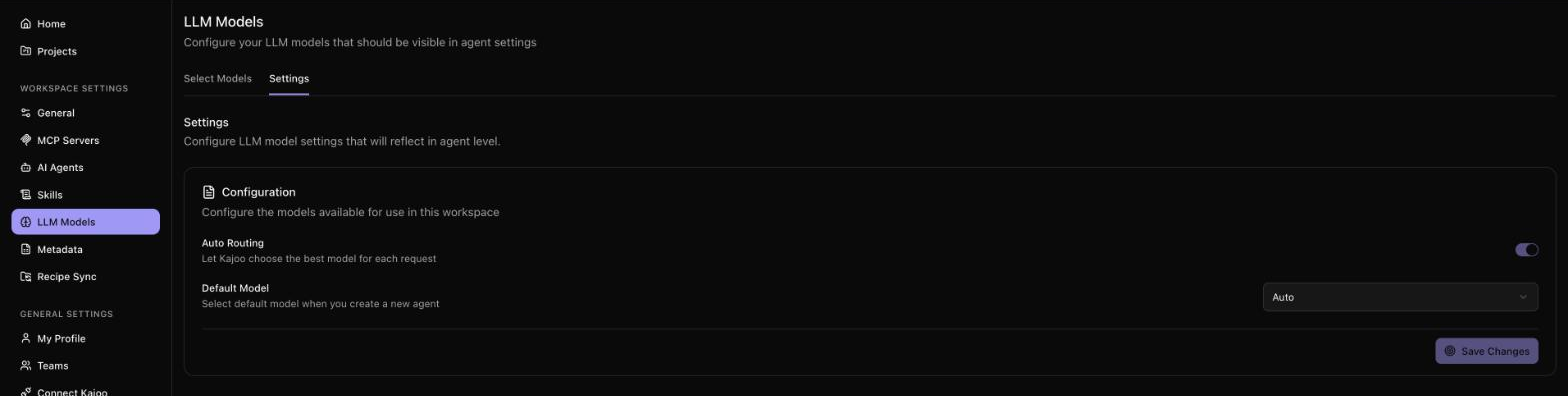
New workspaces start with every model turned on and Auto as the default. The default model must stay turned on.
All model calls go through the Kajoo AI Secure Gateway. See Overview.
Plan mode
Turn on Plan before work that changes things. The agent studies the task and proposes a plan without making any changes. Then:
- View Plan to read it.
- Revise to say what should change, then Send Feedback.
- Reject to drop it.
- Accept & Build to let the agent carry it out.
Attach files
Use + → Add Files or Photos, drag files into the chat, or paste them. You can attach images and .txt, .md, .csv, .json, .pdf, .zip, .doc and .docx files: up to 10 files per message, and 50 MB in total. Files are saved in the workspace sandbox, where agents can read them.
If the chat's model can't read images, switch to a model that can before you attach one.
Queued messages
You don't have to wait for the agent to finish. Type while it works and send: your message shows as Queued, and the agent picks it up before its next step. Hover over a queued message and click the X to remove it. If you stop the agent, your queued messages come back into the message box.
Approvals and questions
Agents ask before risky actions, and sometimes they need an answer from you. The approval mode decides how often they ask.
| Mode | What happens |
|---|---|
| Default Approvals | Follows each agent's and tool's own setting |
| Auto Approvals | Kajoo checks each action and runs the safe ones without asking. Risky ones, and every delete, come to you. |
| Bypass Approvals | Every action is approved automatically. Use with care. |
Set the mode for a chat from + in the message box. It applies to the agent and all its sub-agents.
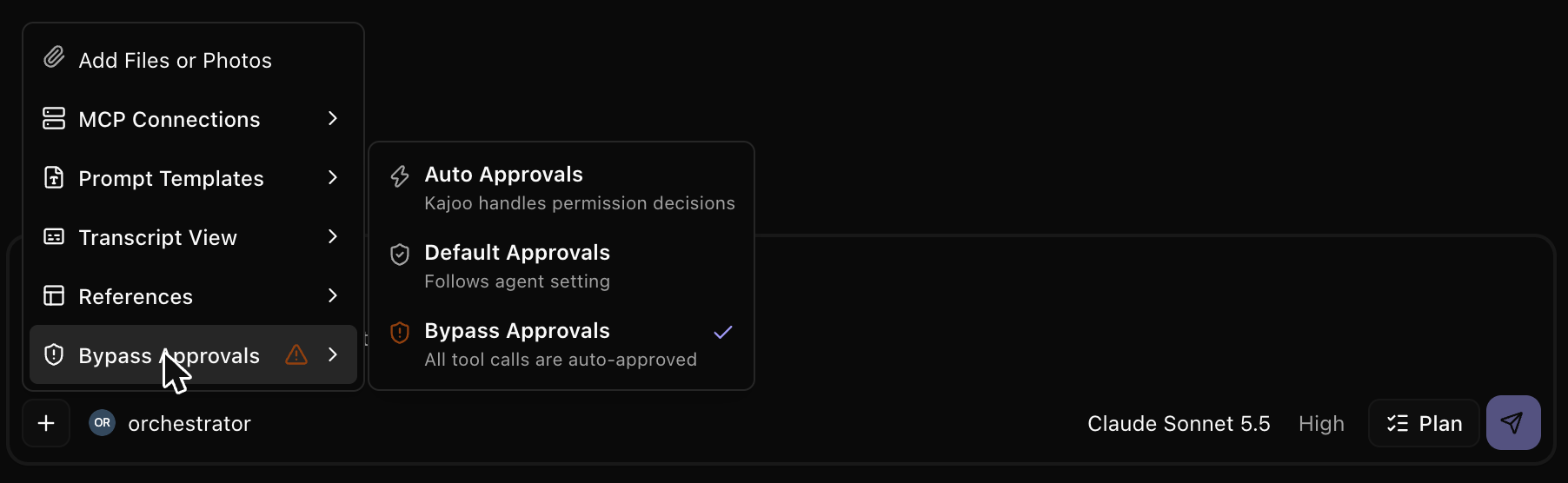
To set the default for new chats in a project, go to Project Settings → General → Chat Configuration (Default or Bypass).
Approval and question cards take the place of the message box while an agent waits for you:
- Approve or Reject, with an optional reason, then Submit. With several waiting, use Approve all or Reject all.
- From the arrow next to Submit, choose Always approve in this session or Always approve and bypass permissions.
- For a question, pick an answer or type your own. You can also Skip.
- Keys 1 and 2 choose an option, and Ctrl+Enter or Cmd+Enter submits.
Approvals and questions from every agent, including sub-agents, appear here in the main chat, one at a time.
Stop
While the agent works, the send button becomes Stop. If background tasks are running, Kajoo asks you to confirm Stop All Tasks. You can also stop from an approval or question card. The chat then says "Stopped at your request." and lists any steps that didn't run.
Sub-agents
The main agent can hand parts of the work to sub-agents. Each one shows as a card, "I'm now calling…", with its status: Working, Awaiting Approval, Completed, Error or Cancelled. Click Cancel to stop it, or click the card to follow its work in the Sub Agent Runs tab on the right.
When a sub-agent has worked for a while, the main chat asks "The agent has been working for a while. Do you want it to continue?" Choose Continue or Stop this agent.
Long conversations
When a conversation gets very long, Kajoo summarizes the earlier messages to make room, and shows "Conversation compacted". The agent keeps the context it needs, also when you switch model. The chat history is saved after every turn, and older messages load as you scroll up.
See what the agent is doing
While it works, the chat shows "{Agent} is thinking…" or "is responding…" with the time so far. Each step shows as an activity line with an icon: a command, reading or editing a file, a search, or work on tasks.
+ → Transcript View switches between Normal, which hides steps that went well, and Verbose, which shows every step and the agent's reasoning.
Click Open Layout View in the chat header to open the right panel, with Preview for apps running in the sandbox, Code for the sandbox files, and Sub Agent Runs.
What's next
| Plan and track the work | See Tasks and phases |
| Run work on a schedule | See Scheduled jobs |
| Understand agents and connections | See Platform Concepts |
Updated about 1 hour ago