

Tasks and phases
Plan a project as phases and tasks, follow it on the task board, and hand any task to an agent with one click.
Every project has a task list. Tasks are grouped into phases, the stages of the work such as Setup, Discovery or Code Migration, and each task moves from To do to Done. Agents read and update the same tasks you see, so the plan stays current while the work happens.
Open the tasks
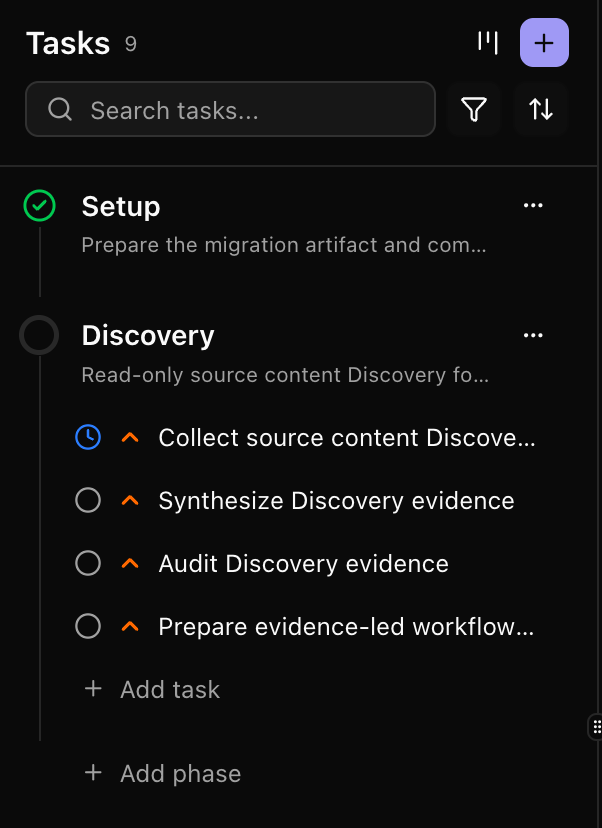
In a project, click Tasks in the rail on the left. The list shows every task, grouped by phase. From the list header you can:
- Click Open board to see the task board.
- Click + to add a New task or a New phase.
- Search tasks, and filter them by status, priority or phase.
- Choose how tasks are sorted inside each phase: Manual order, Status or Priority.
Tasks that don't belong to a phase are listed last, under No epic.
The task board
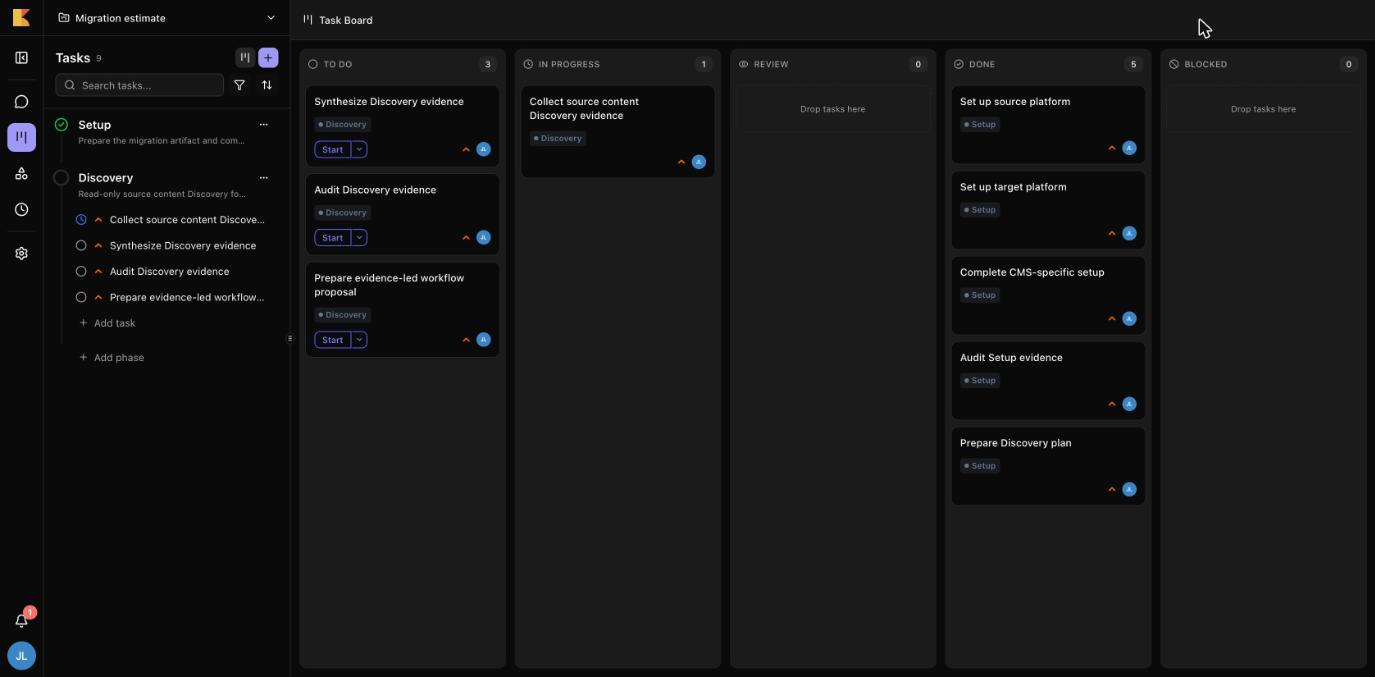
The board shows the project's tasks in five columns:
| Column | What it means |
|---|---|
| To do | Ready to start. Draft tasks show here too, dimmed. |
| In progress | An agent or a person is working on it. |
| Review | The work is finished and waiting for someone to check it. |
| Done | Complete. |
| Blocked | It can't go on until something is resolved. |
Drag a card to another column to change its status, or up and down to change the order. Each card shows the task's name, its phase, its estimate and priority, and a Start button when the task is ready. Close the board with the X to return to the list.
Task details
Click a task to open it. The task window has three tabs:
- Description, written in Markdown.
- Artifacts, the files and results the task produced.
- Dependencies: Depends on lists the tasks that must be done first, and Linked tasks lists related tasks that only give context.
On the right are the task's status, Priority (low, medium, high or critical), its phase, the chat it ran in, an Estimate in hours, tags, and who created it. Changes save as you make them. To delete a task, use the ⋯ menu.
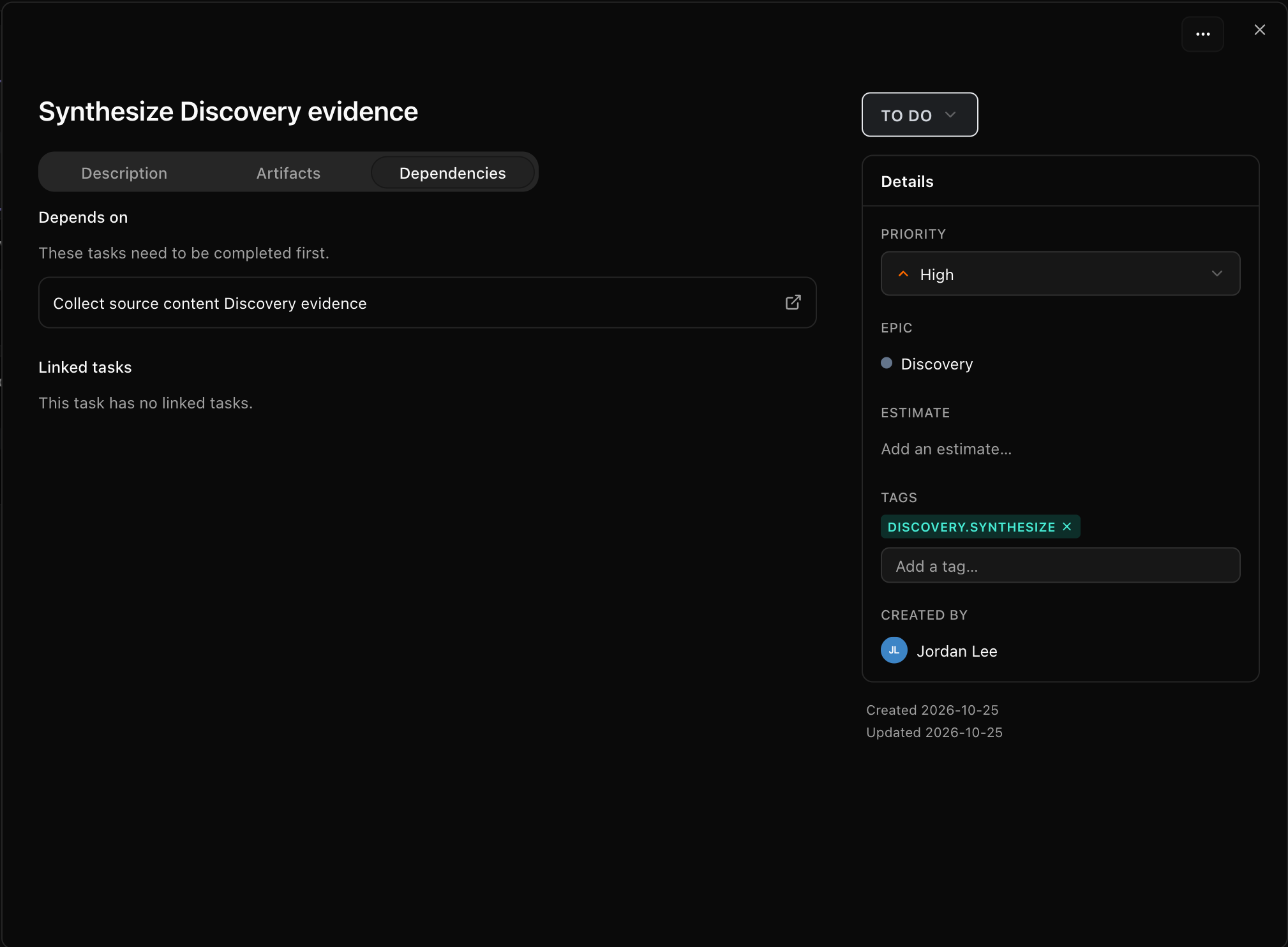
A task can't be moved to In progress or Done while a task it depends on isn't done. Kajoo shows "Complete prerequisite tasks before starting or completing this task."
Statuses
A task is Draft, To do, In progress, Review, Done or Blocked. Use Draft for ideas that aren't ready to start: draft tasks have no Start button.
Phases
A phase groups related tasks and shows its progress as a ring that fills as its tasks are done. Completed phases are folded away in the list.
- Add a phase from + → New phase, or from the Add phase row at the end of the list. Give it a Name, a Description if you like, a Color, and the phases it Depends on. Kajoo won't let you create a loop of phases that wait for each other.
- Edit or delete a phase from its ⋯ menu. Deleting a phase keeps its tasks: they move to No epic.
- A phase's status follows its tasks. It is To do until work starts, In progress while any of its tasks is underway, and Done when all its tasks are done. Use Mark complete or Reopen in the phase menu to set it yourself, and Return to automatic to let it follow its tasks again.
- Locked phases. A phase shows a lock while a phase it depends on isn't done, and its tasks can't be started from the list.
Start a task with an agent
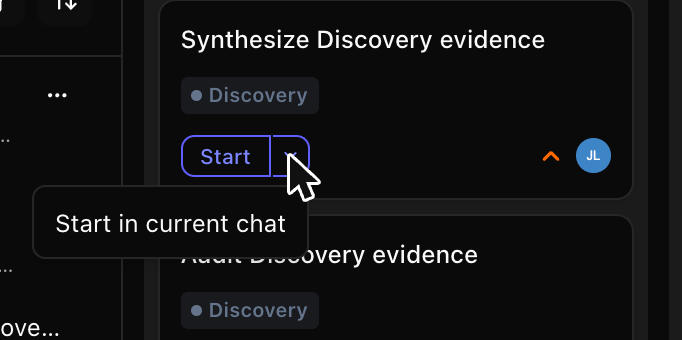
A task in To do has a Start button. Start:
- Creates a new chat named after the task, with the task's agent (or the workspace's default agent).
- Sends the task's name and description as the first message.
- Links the chat to the task and opens it.
The agent moves the task to In progress when it begins and to Review when it's done, so you can check its work. To use the chat you already have open, click the arrow next to Start and choose Start in current chat.
To work through a whole phase, hover over the phase and click Start all. Its ready tasks go to one chat, where the agent plans and works through them.
To run a task again, set it back to To do and the Start button comes back.
Agents and tasks
Agents can create, update and organize tasks and phases themselves. Ask in the chat, for example "Break this work into tasks under a Discovery phase", and the plan appears in the list and on the board as the agent works.
When an agent shows you a task in the chat, it appears as a card with the task's details, a Refresh button, and a box to ask the agent about the task.
Recipes and phases
Some recipes set up their phases for you. Projects created from Sitecore Migration v2 start with its phases and first tasks in place. Sitecore Migration v3 builds its plan on the board as the migration goes: see Recipes.
What's next
| Working with agents in chat | See Working in chat |
| Run work on a schedule | See Scheduled jobs |
| See how a recipe plans its work | See Recipes |
Updated about 1 hour ago