

Scheduled jobs
Run an agent on a schedule for routine work such as daily reports, nightly checks or weekly summaries.
A scheduled job runs an agent on a schedule, without you opening a chat each time. Use it for routine work such as a daily status report, a nightly check or a weekly summary.
Find your jobs
In a project, click the clock icon, Scheduled jobs, in the rail on the left. The list shows the project's jobs and how many are switched on. Each project can have up to 20 jobs switched on at once.
Create a job
- Click + (New scheduled job).
- Fill in the form:
| Field | What to enter |
|---|---|
| Name | A short name, such as "Weekly summary" |
| Agent | The agent that does the work: the Kajoo Assistant or one of your workspace's agents |
| Instructions | What the agent should do on every run |
| Repeat | Hourly, Daily, Weekdays, Weekly, Monthly, Once at a date and time, or Custom (cron), plus the time or day it needs |
| Timezone | The time zone for the schedule. It starts as your browser's. |
| Approvals | Default approvals follows the agent's settings. Bypass approvals approves every action automatically. |
- Click Create job. The job is switched on straight away.
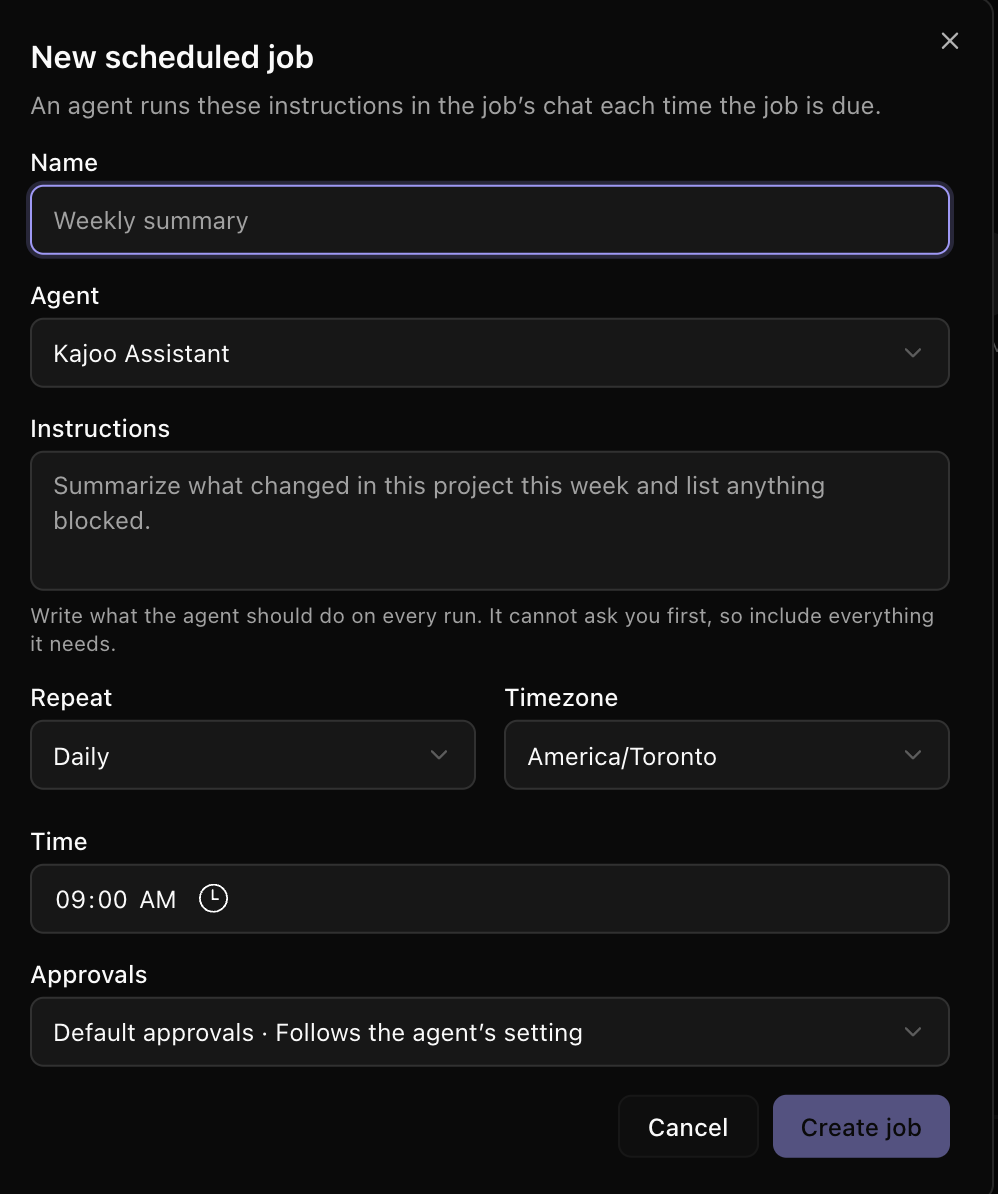
The agent can't ask you anything before it starts, so put everything it needs in the instructions.
A job runs at most once an hour. For a monthly job, pick a day up to the 28th so that every month has it.
Where the results go
The first run creates a chat named after the job, and every later run continues in that same chat. Click Open chat on the job to read the results. A chat that belongs to a job has a Scheduled job button that leads back to it.
When a run finishes or fails, the person who created the job gets a notification under Updates in the notification center, with an Open chat button. If a run stops to wait for an approval or an answer, the notification says so.
Manage a job
Click a job to see its agent, time zone, approval setting, last run, instructions and Past runs.
- Run now starts a run straight away.
- Pause and Resume switch the job off and on. You can also use the switch on each row of the list.
- Edit changes the job.
- Delete stops the job for good. Its chat history is kept.
Only the person who created a job can edit it or use Run now. Anyone with edit access to the workspace can pause, resume or delete it.
A job runs as the person who created it.
When a run is skipped
Each past run shows its result: Running, Needs your approval, Ran, Failed, Stopped or Skipped. A run is skipped, and not made up later, when:
- the organization is out of agent units,
- the job's creator has left the workspace,
- the job's agent was removed,
- Kajoo wasn't running at that time and the run is more than an hour late,
- the run couldn't start, or
- the job's chat was still busy with the previous run.
What's next
| Work with agents in chat | See Working in chat |
| Plan and track the work | See Tasks and phases |
Updated about 1 hour ago