

Team, roles and sharing
Invite teammates, decide what each role can do, and choose who can open each workspace.
Kajoo Agentic shares your organization, users and sign-in with Kajoo Classic. This page covers inviting teammates, what each role can do, and who can open each workspace.
The Teams page
Go to General Settings → Teams. It has two tabs:
- Users lists everyone in your organization: their name and email, company, role, whether their email is verified, and their status. Search by name or filter by role.
- Roles & Permissions shows what each role can do. You only see this tab if you're allowed to manage roles.
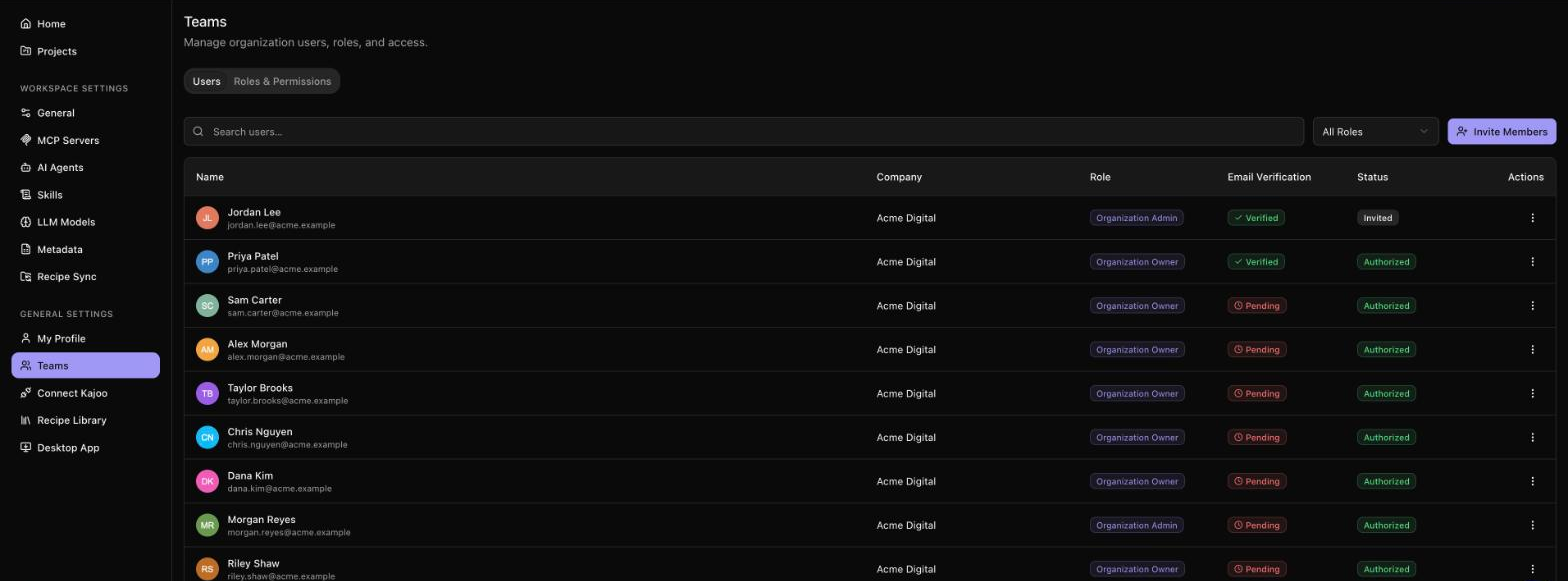
Invite teammates
- On the Users tab, click Invite Members.
- For each person, enter their First Name, Last Name, Email and Role. Click Add another user for more rows. You can invite up to 15 people at once.
- Click Send Invitations.
Each person gets an email. The link in it is valid for 7 days and opens a page that says "You've been invited to" your organization. They click Set a password, choose a password, click Save Password, and then Continue to Kajoo to sign in.
To send an invite again, open the ⋯ menu on the person's row and choose Re-send Invite. The earlier link then stops working.
You can't invite someone as an Organization Owner. Invite them as an Admin or Member, and an Owner can change their role once they've joined.
Roles
Every person has one of three roles:
| Role | What it's for | Default permissions |
|---|---|---|
| Organization Owner | Full access to organization settings, users, billing and all workspaces | Everything. This role can't be changed. |
| Organization Admin | Manages workspace settings, projects, members, and roles and permissions | Everything |
| Member | Oversees projects and tasks | Create Projects and Edit Projects |
Change what a role can do
On the Roles & Permissions tab, tick or clear permissions for Organization Admin and Member, then click Save Changes. The change applies straight away to everyone with that role.
| Group | Permissions |
|---|---|
| Organization | Manage Organization Settings, Manage Users, Manage Roles & Permissions, Manage Billing |
| Workspace & Projects | Create Workspace, Edit Workspace, Delete Workspace, Share Workspace, Create Projects, Edit Projects, Delete Projects |
Change someone's role
Open the ⋯ menu on their row, choose Edit Role, pick the role under Assign Role, and click Save Changes.
- An Organization Owner can give anyone any role, but the organization always keeps at least one Owner.
- An Organization Admin can only change a Member's role, to Admin or Member.
- Nobody can change their own role.
Remove someone
Open the ⋯ menu on their row, choose Remove, and type REMOVE to confirm. You can't remove yourself, and only an Owner can remove another Owner. The workspaces and projects they created stay in the organization.
Who can open a workspace
- Organization Owners can open every workspace in the organization, with edit access.
- Everyone else, including Organization Admins, can open the workspaces they created and the ones shared with them.
If someone opens a workspace they don't have access to, they can click Request Access. The organization's Owners and Admins are notified.
Share a workspace
On a workspace page, click Share in the top bar. You need the Share Workspace permission and edit access to the workspace.
In the Share Workspace window:
- Invite by name or email: pick people from your organization, choose View or Edit, and click Share. They get a notification in Kajoo.
- Share link: copy a link that anyone in your organization can use to open the workspace, with view or edit access.
- Who has access: lists the Organization Owners, the workspace's creator (Workspace Owner), and everyone it's shared with. Use the menu next to a person to switch between View access and Edit access, or Remove them.
| Access | What the person can do |
|---|---|
| View | Open the workspace and its projects, read chats and tasks. They can't send messages, start chats, change settings or share. |
| Edit | Work in the workspace like its owner, within what their role allows |
Your profile
Open the user menu at the bottom of the sidebar and choose My Profile. Add a photo (an image under 2 MB), and edit your First Name, Last Name, Phone Number, Job Title, Country and Language. Your email and organization name can't be changed here.
Switch workspaces
Open the user menu at the bottom of the sidebar. Your name shows with the current workspace underneath. Choose the workspace row to see your workspaces, search them, or Create New Workspace.
What's next
| Start working in a workspace | See Getting Started |
| Work with agents | See Working in chat |
Updated about 1 hour ago