

Creating a design with AI/GenUI
Kajoo GenUI lets you instantly create on-brand UI components using natural language prompts. The AI generates production-ready designs, aligned with your design system and fully editable inside the Kajoo Canvas. Ideal for fast, consistent, design-to-code workflows.
Kajoo GenUI is a brand-aware generative design experience that empowers you to create completely new component designs, not just basic templates, based on your brand’s design system.
Powered by advanced AI agents trained specifically for Kajoo, every component generated is:
- Fully on-brand
- Produced as valid Kajoo Universal Language (KUL) code
- 100% editable and controllable within Kajoo Canvas
- Seamlessly consistent with your project’s existing design system
This means you can generate real, production-ready components from natural language prompts, refine them visually, and bind them to real data with full control without sacrificing design fidelity or technical correctness.
How It Works
Kajoo GenUI uses an advanced GenAI that understands your brand design system context and creates components that naturally fit into your project’s visual language.
Behind the scenes, the agent is capable of producing 100% valid KUL — so every generated design is ready to edit, reuse, and publish. This differs from “image-only” UI suggestions; here you get structured, editable component output.
1. Access the Feature
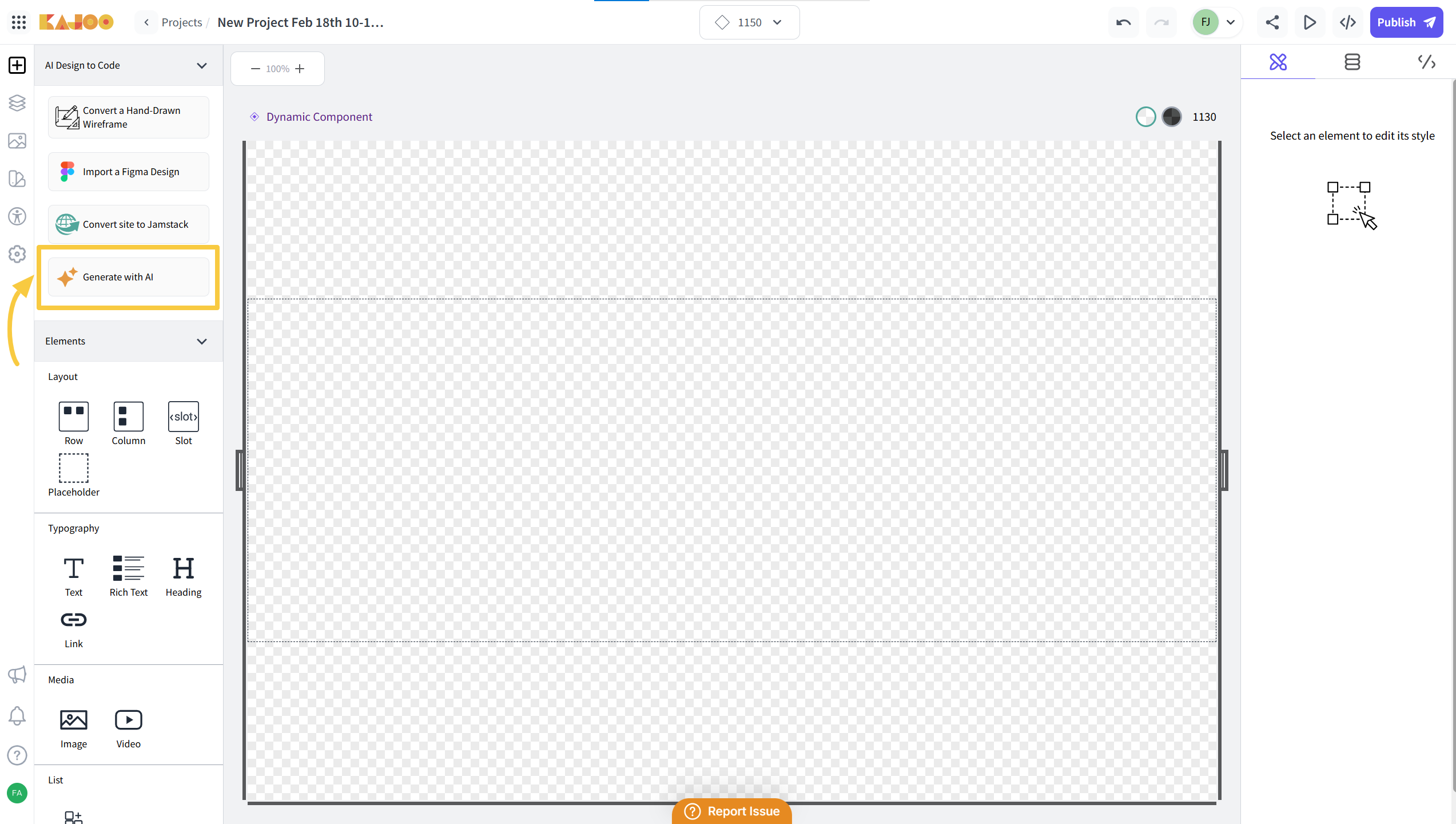
Navigate to the AI Design to Code section and click Generate with AI to begin.
This opens a design generator modal powered by brand-aware GenAI.
2. Describe the Component and Select a Design System
In the pop-up:
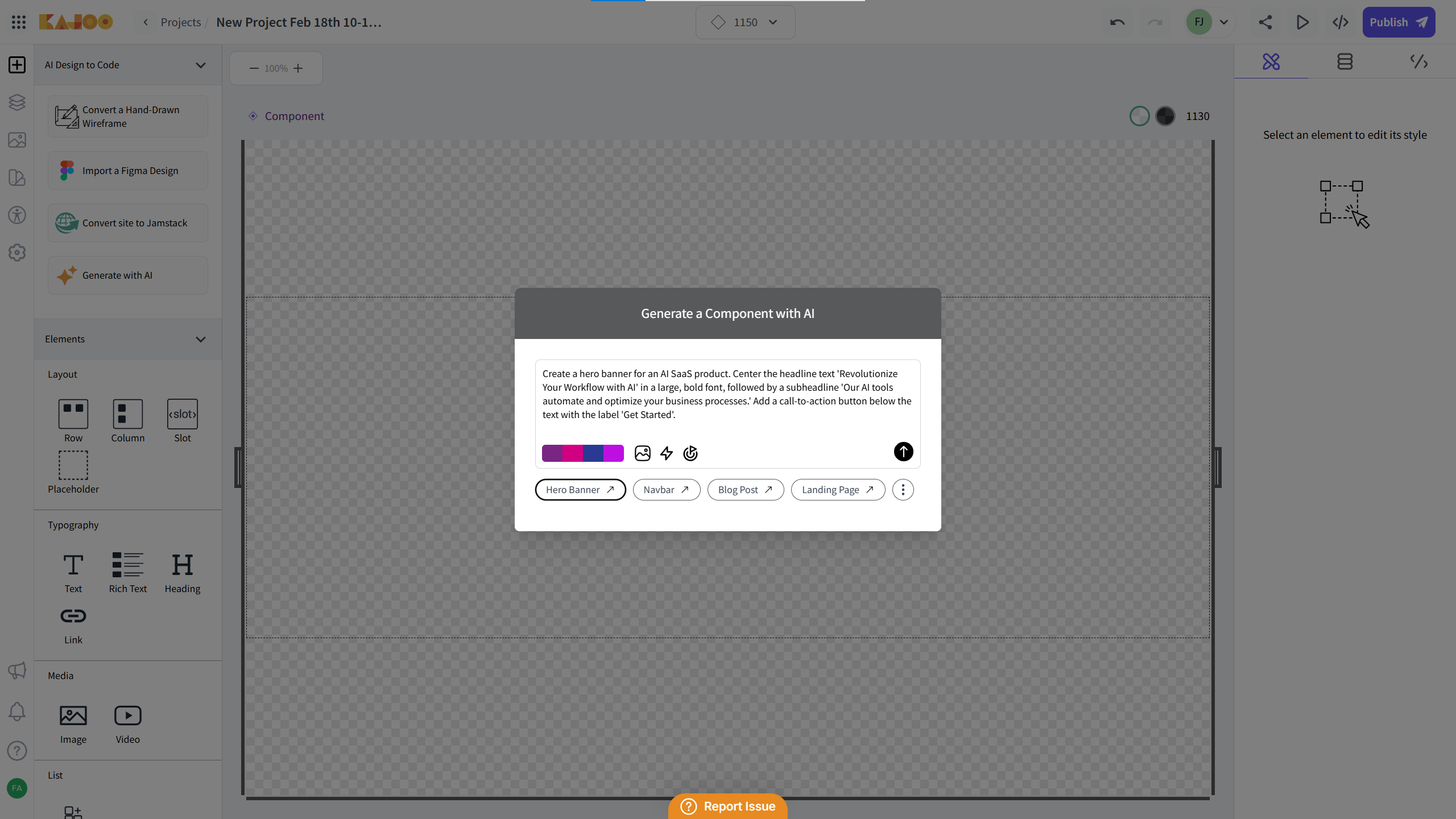
- Describe your component in natural language — for example:
“Create a hero banner with a large headline, supporting text, primary CTA button, and product image.” - Optionally choose a starting component type or layout from the dropdown (e.g., card, hero, pricing, list).Or pick one of the predefined AI prompt templates from the dropdown (e.g., hero section, pricing table, feature grid) to start from a best-practice structure.
- Select the design system from your Kajoo account that you want the AI to base the design on.
Kajoo GenUI combines your prompt (or prompt template) with the selected design system to generate an on-brand component in 100% valid KUL, ready to edit in the Kajoo Canvas.
3. Generate & Inspect
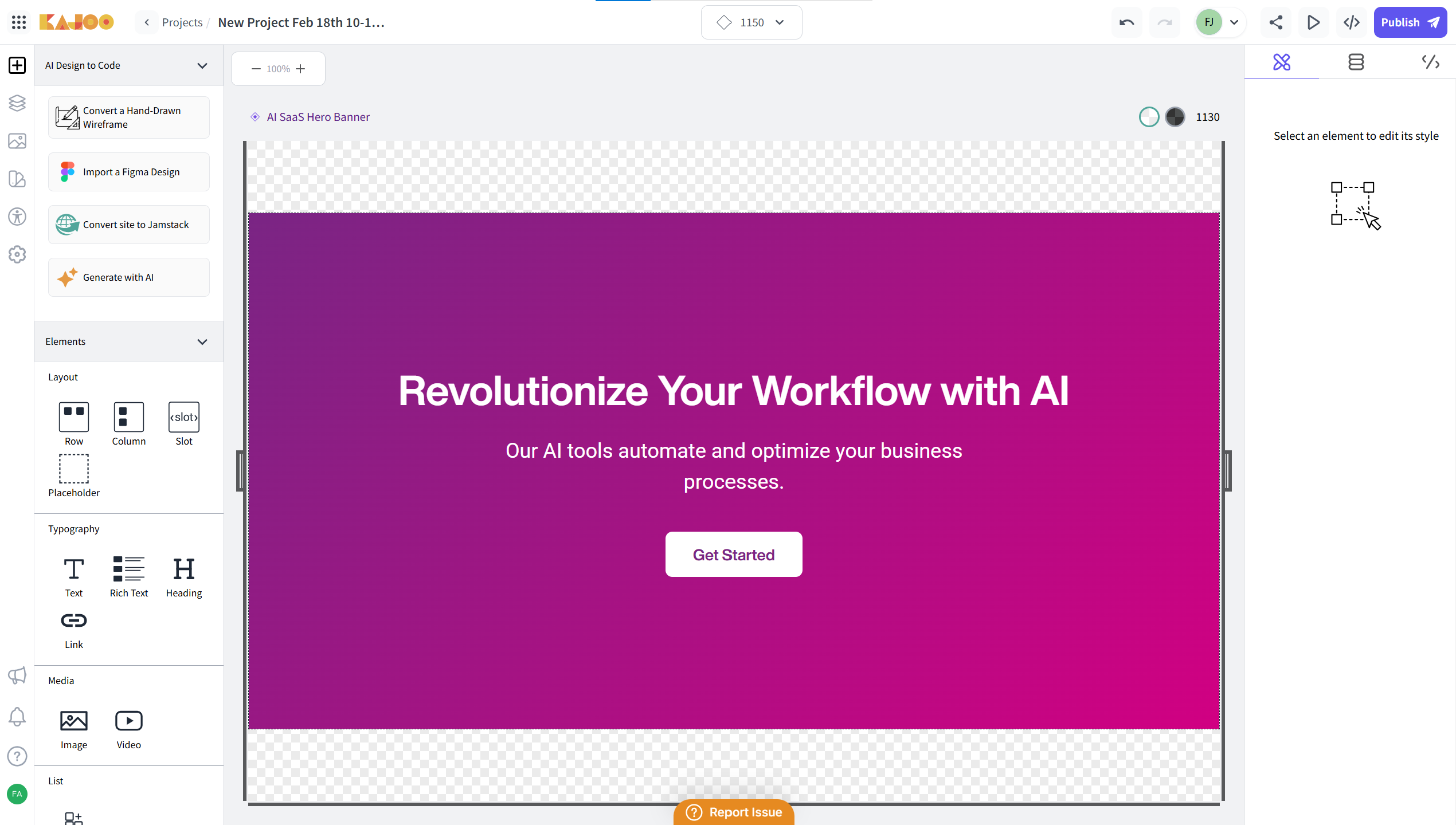
Once you click Generate, Kajoo GenUI:
- Interprets your prompt using brand context
- Produces a complete component in valid KUL code
- Renders it directly on the Kajoo Canvas
This component isn’t a static image — it’s a real, editable design block that obeys your design rules.
4. Customize the Component
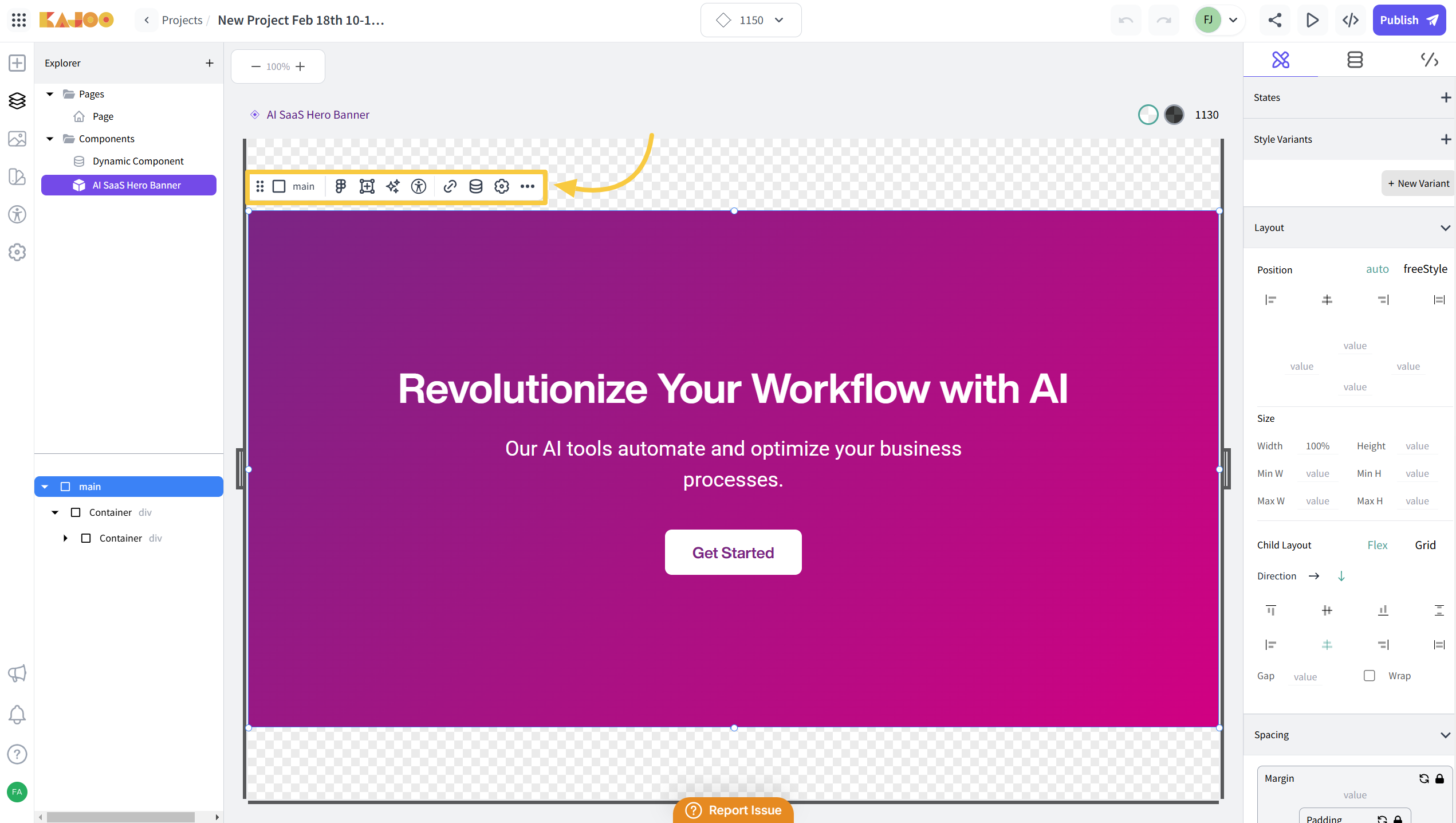
- Use the options highlighted in the interface to make changes, such as resizing or repositioning elements:
5. Additional Options
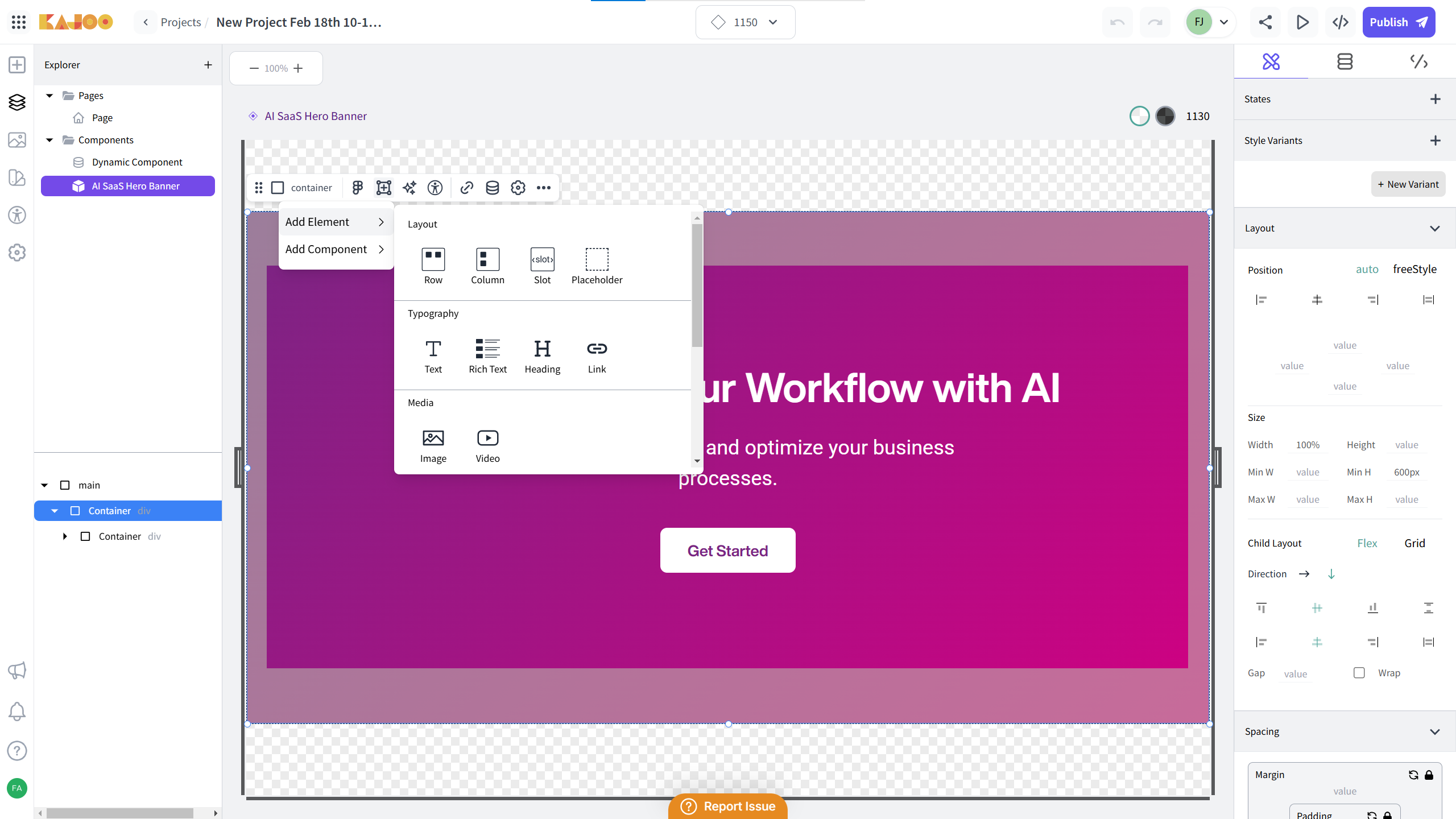
- Insert Elements and Components: Use the dropdown menu to include additional elements or components.
6. Edit with AI
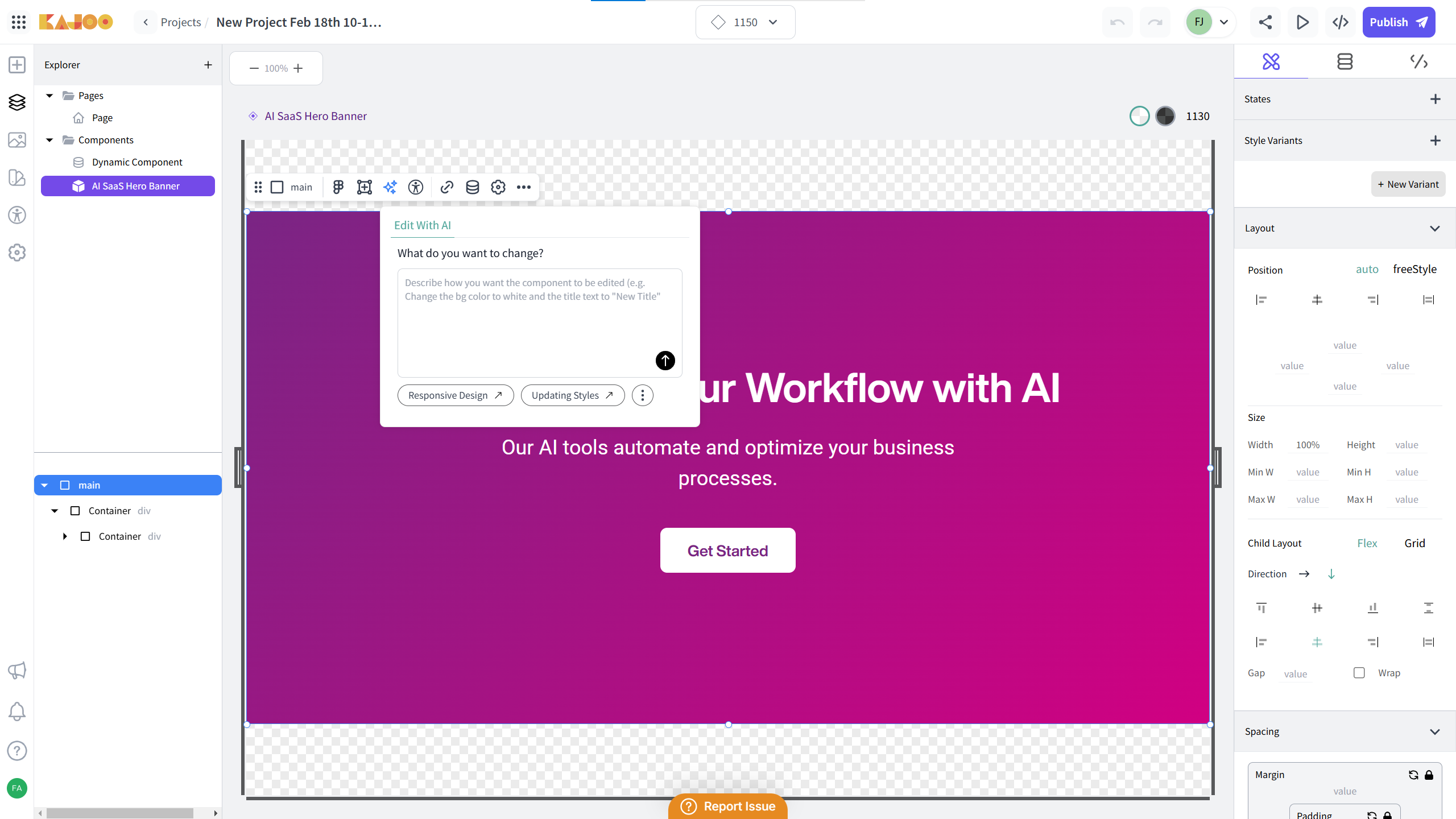
You can also continue working with AI to refine or restructure the component.
Select Edit with AI and type a new prompt — e.g.,
“Move the image to the left and add a secondary call-to-action button with subtle shadow.”
The AI agent updates the component, keeping brand alignment intact.
7. Bind Data to Components
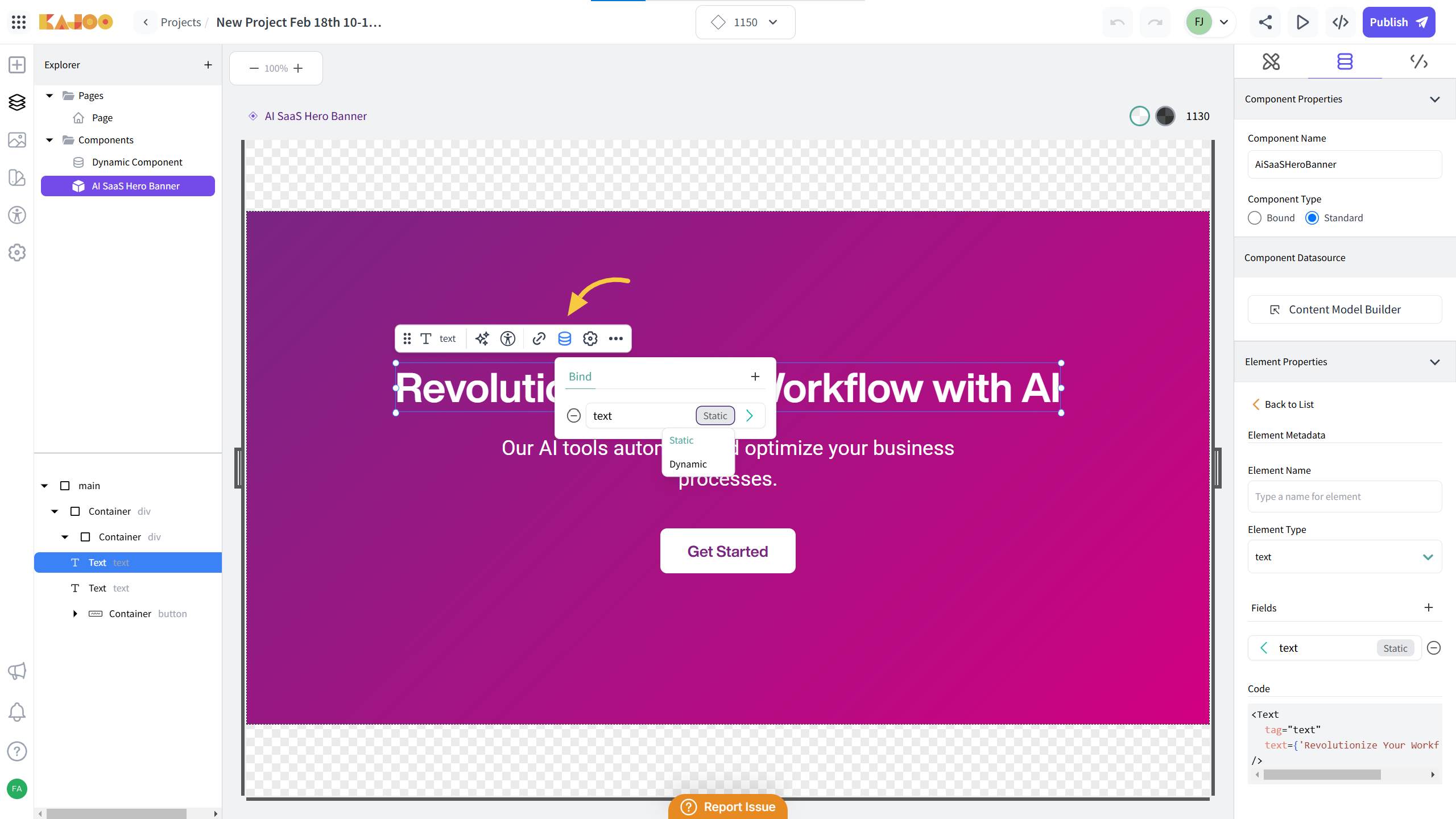
Click the data icon to bind content or CMS fields to component elements — so it becomes dynamic, not just static design. This ties design to real content models. (explained in the Content modeling user guide in detail).
8. Adjust Component Settings
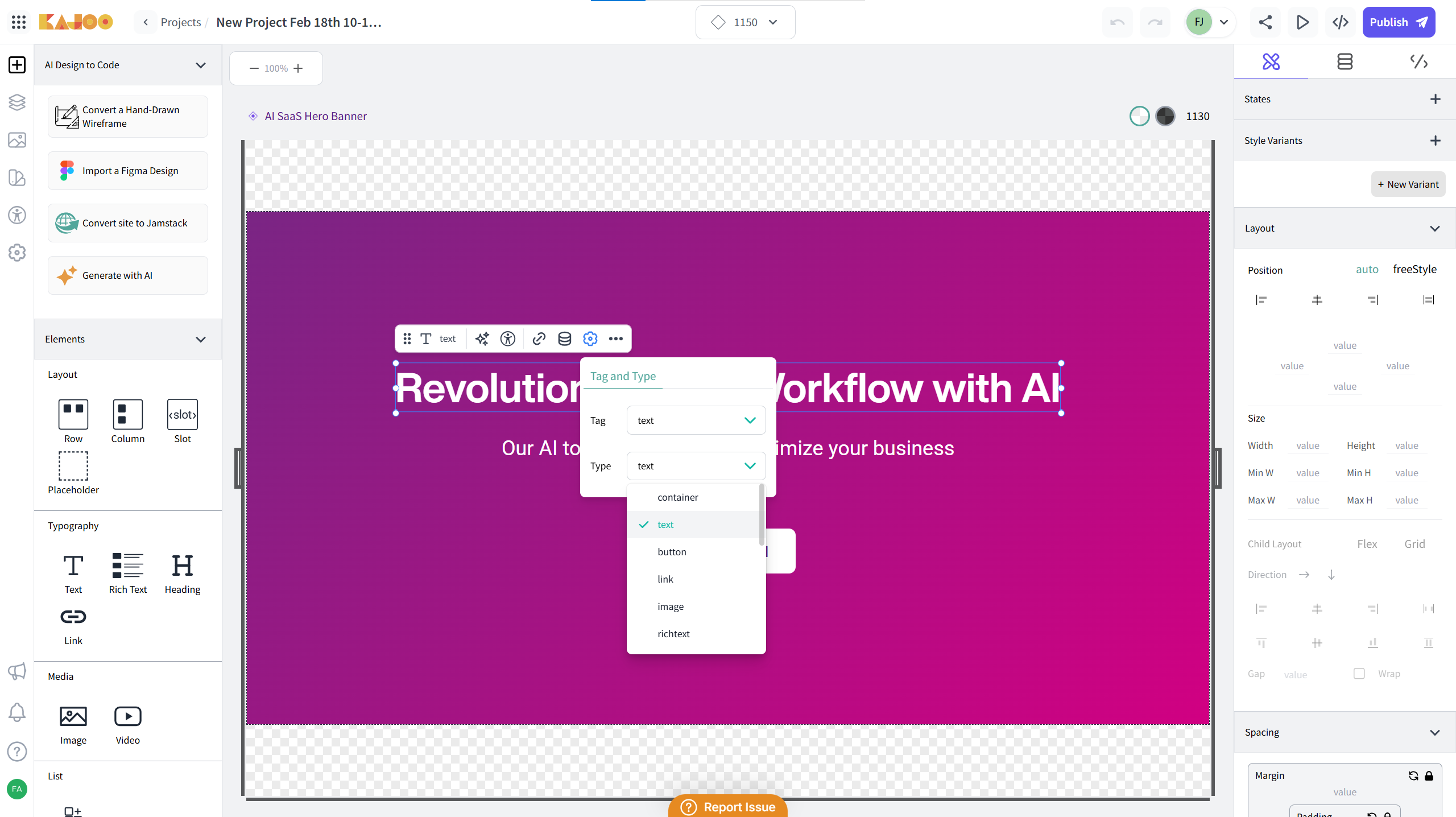
Customize the semantic HTML tag and type of the component by clicking on the settings icon.
This ensures the resulting component isn’t just on-brand, but also technically robust.
You're all set!
With Kajoo GenUI, you now have a workflow that lets you generate brand-consistent, fully editable, production-ready components from AI — with complete control over design, style, and data integration.
Updated 5 months ago