---
updatedAt: 2026-05-12T18:27:16.000Z
agentTools:
projectIndex: https://docs.kajoo.ai/llms.txt
---
# Kontent.ai
# Kajoo.ai × Kontent.ai Integration — User Guide
This guide walks you through two tasks:
1. **Add a Kontent.ai connection** in Kajoo.
2. **Bind front‑end components** in the Kajoo Builder to Kontent.ai content models.
***
## 1) Prerequisites
* An active **Kontent.ai** project with at least one **Environment** and **Content Types**.
* **Delivery API token** for the environment you will use (from *Project settings → API keys* in Kontent.ai).
* The **Environment ID (codename)** (from *Project settings → Environments* in Kontent.ai).
*Tip:* This is the environment **codename/ID**, not the project ID.
* A **Kajoo** project and permission to manage **Integrations**.
***
## 2) Add a Kontent.ai connection in Kajoo
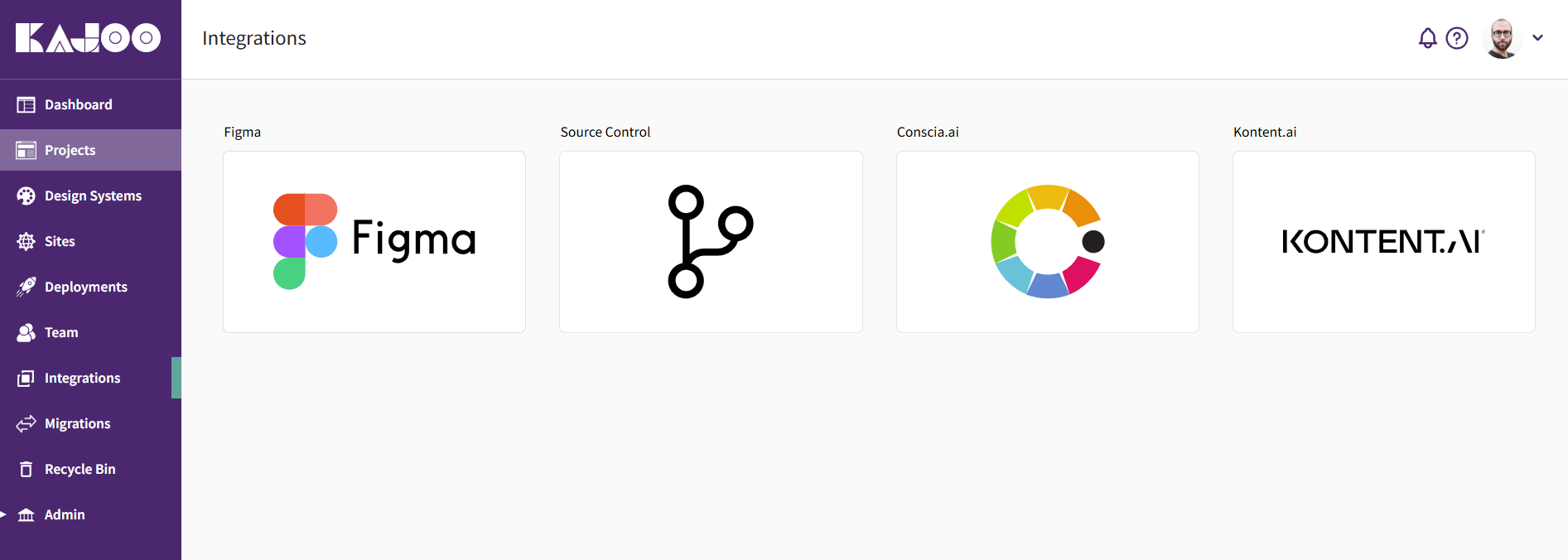
1. In Kajoo, open the left navigation and go to **Integrations**.
You’ll see tiles such as **Figma**, **Source Control**, **Conscia.ai**, and **Kontent.ai**.
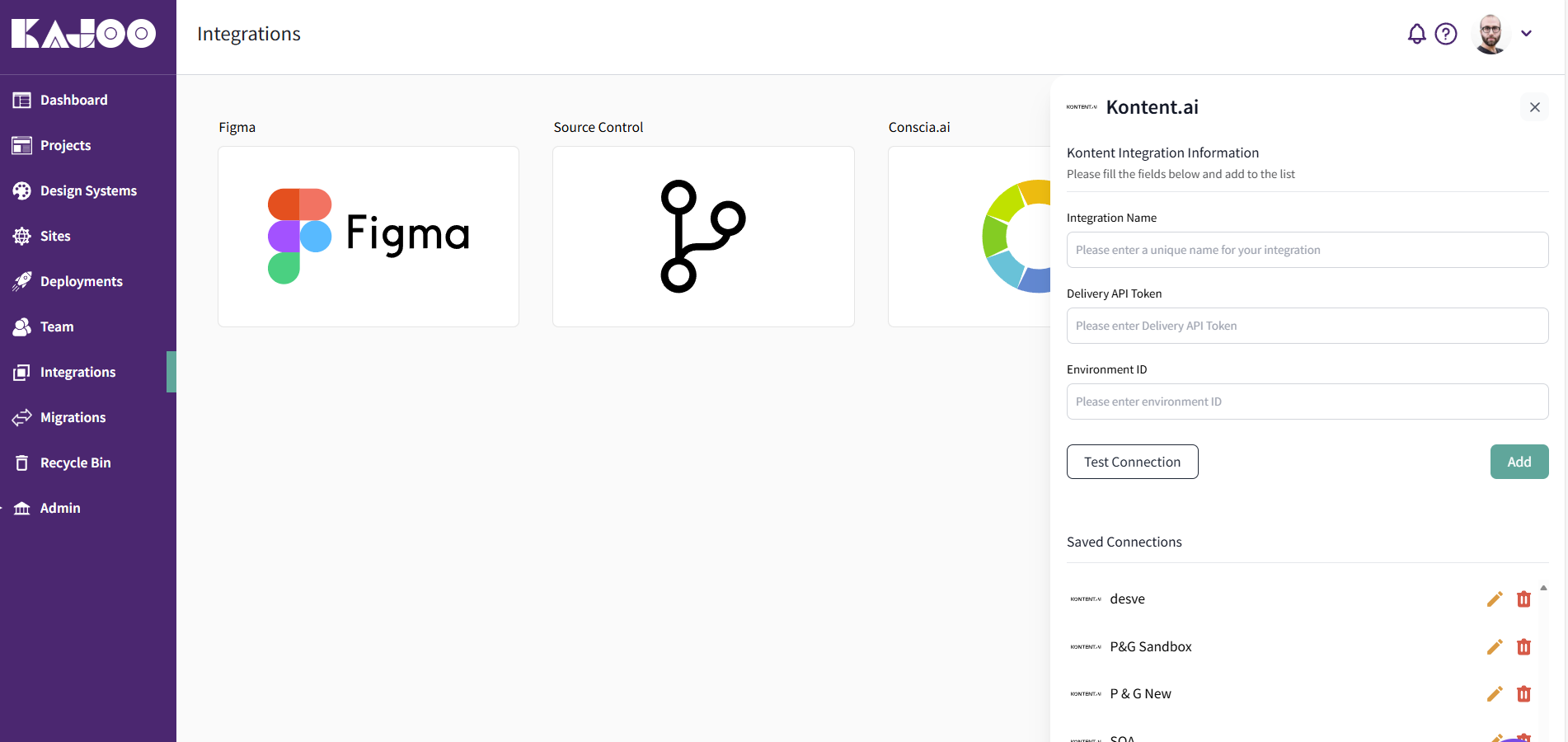
2. Click the **Kontent.ai** tile. A side panel titled **Kontent.ai** opens.
3. In **Kontent Integration Information**, fill in:
* **Integration Name** – any unique, human‑readable name (e.g., `P&G Sandbox`).
* **Delivery API Token** – paste the Kontent **Delivery API** (read‑only) token for the target environment.
*Note:* Use the **Preview API token** only if you plan to surface unpublished/preview content in non‑production scenarios.
* **Environment ID** – the environment **codename/ID** from Kontent.ai.
4. Click **Test Connection**.
* **Success:** proceed to save.
* **Failure:** verify the token and environment ID (see Troubleshooting below).
5. Click **Add**. Your connection will appear under **Saved Connections**.
You can **edit** (pencil) or **delete** (trash) any saved connection later.
> You can store multiple connections (e.g., `Sandbox`, `UAT`, `Production`) and switch between them when binding data in a component.
***
## 3) Bind components to Kontent.ai content models (Existing Content Model)
> The steps below bind an existing component in Kajoo to an **existing** Kontent.ai **Content Type**.
1. Open your **Kajoo Project**, and go to **Builder**.
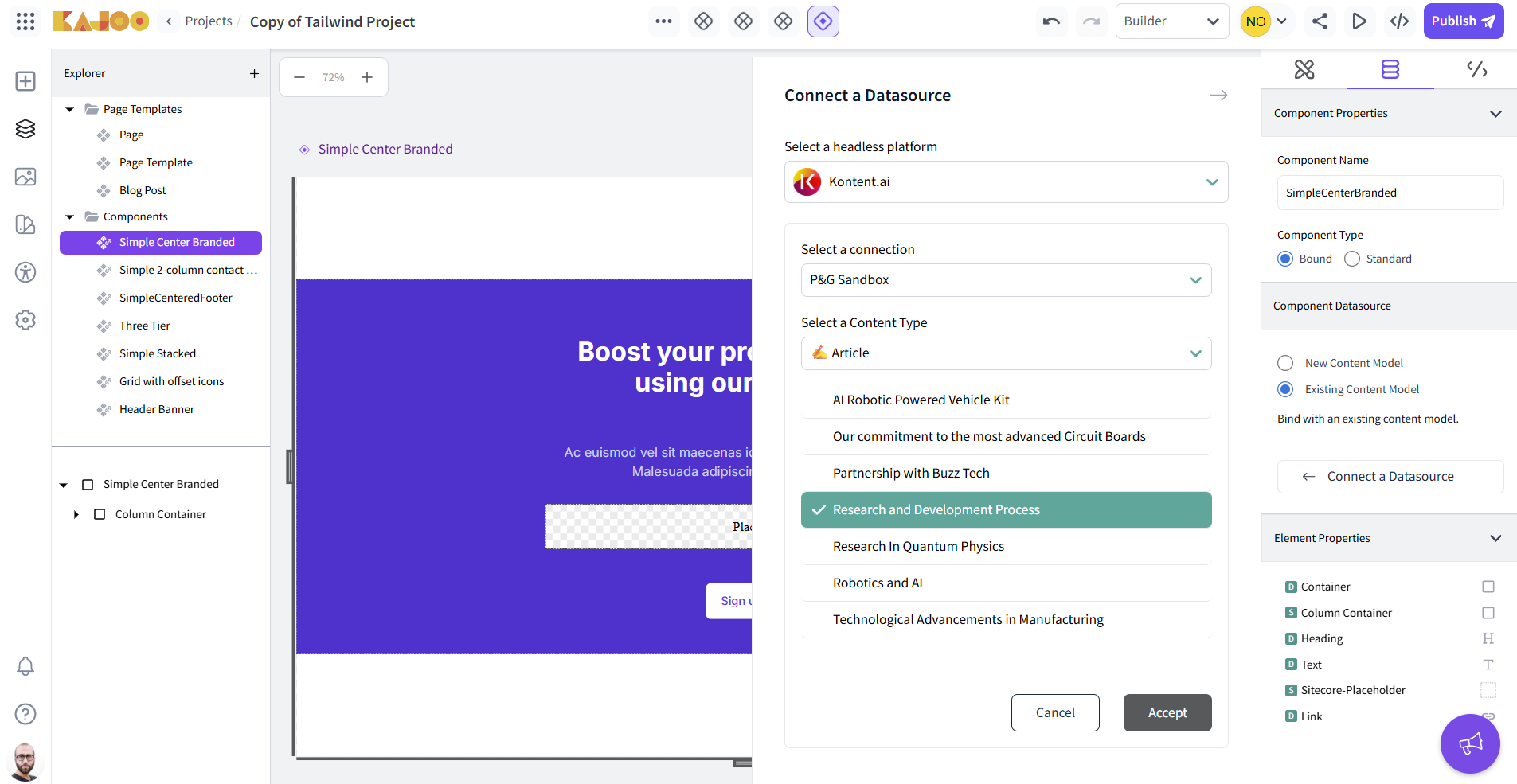
2. In the **Explorer** (left), select the component you want to connect (e.g., *Simple Center Branded*).
3. In the **right panel → Component Properties**:
* Set **Component Type** to **Bound** (so the component can receive data from a datasource).
* Under **Component Datasource**, select **Existing Content Model**.
* Click **Connect a Datasource**.
4. In the **Connect a Datasource** dialog:
* **Select a headless platform:** choose **Kontent.ai**.
* **Select a connection:** pick one of your **Saved Connections** (e.g., `P&G Sandbox`).
* **Select a Content Type:** choose the Kontent.ai type that matches your design (e.g., `Article`, `Panel`, `Carousel`).
* Confirm to bind the type to the component.
5. **Map fields to elements**:
* Select each element inside the component (e.g., **Heading**, **Text**, **Image**, **Link**).
* In the element’s **Properties** panel, use the **Data Binding** (or **Content Field**) controls to map the UI element to a corresponding field from the chosen Content Type:
* **Heading/Text** → *text* or *rich\_text* fields (e.g., `title`, `summary`).
* **Image** → *asset/media* fields (e.g., `hero_image`).
* **Link/Button** → *url* or *link* fields (e.g., `cta_link`, `cta_label`).
* **Repeating blocks** → bind a **list/array** field or modular content to a **repeater**/list element. Then map the inner children (title, image, link) to each item’s fields.
6. **Save** your changes. Use **Preview** to verify live data rendering. When ready, **Publish** the project.
> **Tip:** If a field doesn’t appear, confirm you selected the correct content **type** and that the field exists in Kontent.ai. Refresh the schema in Kajoo if you recently changed the model.
***
## 4) Managing & reusing connections
* Return to **Integrations → Kontent.ai** to **edit** the Delivery API token or **switch** the environment ID if needed.
* In the Builder’s **Connect a Datasource** dialog, you can select a different **Saved Connection** at any time (helpful for moving a component from *Sandbox* to *Production*).
***
## 5) Troubleshooting
**Test Connection fails**
* Double‑check the **Delivery API token** and **Environment ID/codename** match the target environment.
* Ensure the token has access to the environment and Delivery API is enabled in Kontent.ai.
* If using **Preview** token, make sure the connection and environment are intended for preview (unpublished content won’t resolve using the Delivery API token).
**Content Types list is empty or outdated**
* Confirm the selected **Saved Connection** points to the right environment.
* Make sure content types exist in Kontent.ai and you have permissions to read them.
* Close and re‑open the **Connect a Datasource** dialog to refresh the schema after recent model changes.
**Fields don’t show in the element mapping**
* Verify you bound the **component** to the **Content Type** first.
* Check that each element you’re mapping supports the target field type (e.g., image elements need asset fields).
* For repeating content, ensure you’re mapping against a **list/array** or **modular content** field, then bind inner children.
**Rendering shows empty values**
* Make sure content items exist for the selected **Content Type** and the fields are populated.
* If you rely on **Preview** content, use the appropriate token/connection.
***
## 6) Tips & best practices
* **Name connections clearly** (e.g., `P&G Sandbox`, `P&G Prod`) to avoid publishing to the wrong environment.
* **Model‑component alignment:** keep component structures aligned with Kontent.ai content types (fields, repeaters) to minimize mapping friction.
* **Separate environments** for different stages (Sandbox/UAT/Prod) and switch connections as you promote changes.
***
## 7) Glossary
* **Delivery API Token:** Read‑only token used to fetch **published** content from Kontent.ai.
* **Preview API Token:** Token used to fetch **unpublished** (preview) content.
* **Environment ID (codename):** The specific environment inside a Kontent.ai project (e.g., `production`, `sandbox`).
* **Content Type:** The schema/model for a set of content items (e.g., `Article`, `Panel`).
* **Bound Component:** A Kajoo component configured to receive and display data from an external datasource like Kontent.ai.